Home / Devices / Installation Guide
Setting up Cube IPTV
Four steps that apply to every device, then the specifics for yours. Most people are watching inside ten minutes, and we stay on the thread until you are.
The Four Steps, Whatever You Are Using
Every device follows this shape. Only the middle step changes.
Find Your Line Details
After ordering you get an email with a server address, a username and a password. Keep it open. If it has not arrived, look in spam before messaging us.
Install a Player
Use the app we recommend for your device. It is free, and the specifics for each device are further down this page.
Enter the Details
Type the server address and login exactly as sent. The guide then downloads by itself.
Let the Guide Load
Give the EPG a minute the first time. After that it refreshes quietly in the background.
Instructions for Your Device
Expand the one you own. If yours is not here, message us and we will write it out for you.
Amazon Firestick and Fire TV
Open Settings, then My Fire TV, then Developer Options, and turn on installs from unknown sources. If Developer Options is not there, go to Settings, My Fire TV, About, then click your device name seven times and it appears. Install the free Downloader app from the Amazon store, open it once and grant storage access. Enter the install code we emailed you. Downloader fetches the file and offers to install it. Accept, then choose Done rather than Open, and delete the installer when prompted, because a Firestick has very little spare storage. Open the player from your apps list and enter your line details.
Android TV boxes and sticks
The Downloader route above works identically on Nvidia Shield, Mi Box and Chromecast with Google TV. If your box permits direct APK installs we can send you the file instead, which saves a step. One setting worth changing while you are in there: set video output to match your television natively rather than leaving it on automatic. That single change clears up most of the stutter complaints we see on 4K panels.
Samsung and LG smart TVs
Install a supported IPTV player from your television own app store, then add your line inside the player settings. Some models need the device MAC address registered with us first. Message support with it and we will do it while you wait. Honest note: if your set is more than about six years old, an inexpensive Android stick will usually give a smoother picture than the television own app, because the built-in processor is the bottleneck rather than your connection.
MAG and Formuler boxes
These work in portal mode rather than by typing a username. Find the device MAC address on the system settings screen, send it to us, and we bind your line to that box. We send back a portal address to enter, then reboot once after saving. Formuler owners using MyTVOnline should pick the Xtream Codes option rather than portal if offered both, as it handles the guide more reliably.
iPhone, iPad, Windows and macOS
Install a supported player from the App Store, or a desktop player on Windows or Mac, then enter the same server address and login. Playback over mobile data works fine, though the guide takes longer to populate on a weak signal. These are good second screens rather than a substitute for a proper television setup.
Nothing is loading at all
Check the login for a stray space first, since a space copied in with a password is the single most common ticket we get. Retype it by hand rather than pasting. Then confirm the device is on the network you expect. If channels load but freeze, that is usually a server route rather than your device, so message us with the channel name and the time and we will move you, normally within a few minutes.
If the Picture Is Not Right
Before changing hardware, work through these in order. In our experience the fix is in this list nine times out of ten.
- Run a speed test on the device that is struggling, not on your phone in another room.
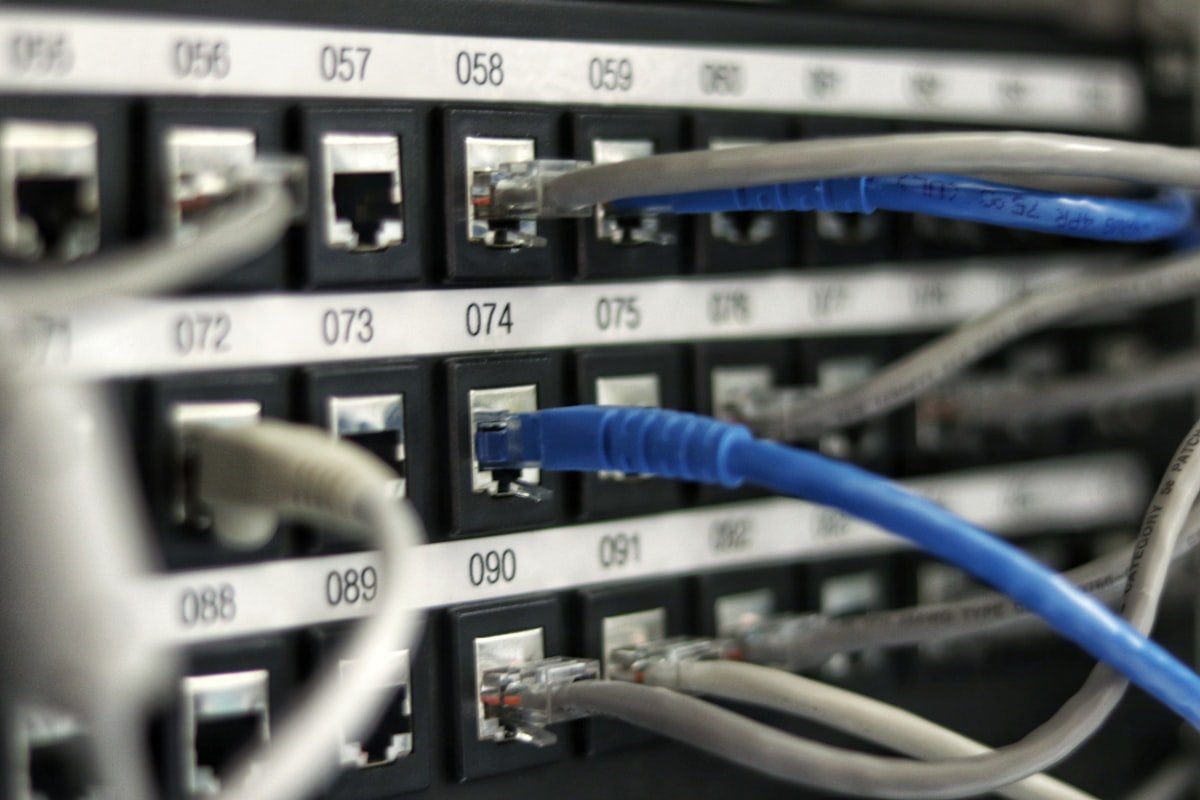
- Plug in an ethernet cable if you possibly can. It fixes more than every other step combined.
- Pause any large downloads. One console update will happily swallow your whole connection.
- Increase the player buffer. A slightly slower channel change buys you a picture that holds.
- Restart the router first, wait a full minute, then restart the streaming device.
Still wrong after all that? Send us the channel name and the time it happened. That is almost always enough for us to identify the route and switch you off it.
Stuck on Any Step?
Send us a photo of the screen you are looking at and we will tell you exactly what to press next.